Ok – your first question is “What the hell is an Electric IMP?” My lazy answer is - check out their web site for the best answer: http://electricimp.com.
But in a nut shell, it’s a small little electronics module with the primary focus of connecting to the internet and controlling hardware. This hardware can be something as simple as a relay to control a light or as complicated as a sensor that uses I2C, SPI or serial communications (UART). You have six I/O lines that can be configured for your needs, so you aren’t going to control a small factory with only one of these, but configure a 100 or so of these and it might get interesting. At this point, this “tech” is in a very early stage, the concept is very cool, but I don’t think I’d propose doing anything commercial or for a client, well at least just yet.
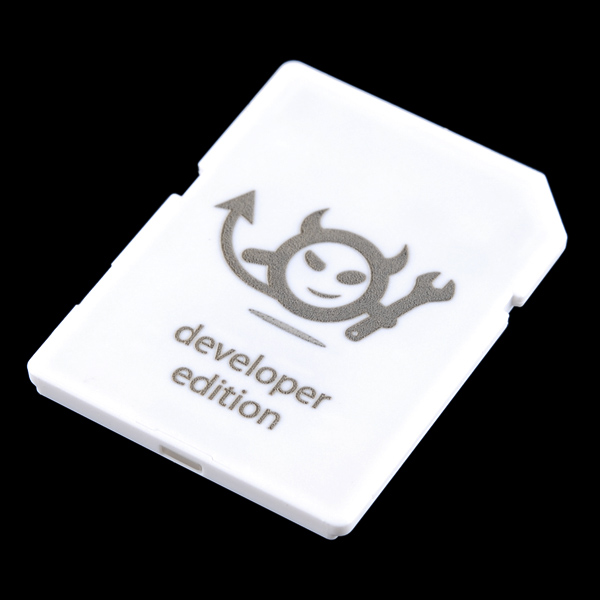
So let’s start where it all begins, here is my little Electric IMP that I purchased from Spark Fun.
And here it is in it’s home in an SD socket that’s part of the Breakout Board for the IMP. A couple of things to note on this. First, this is not just socket for an SD card it has a specific pin out for the IMP. I’m really not sure why the IMP is in this form factor, probably just to have a nice little carrying case. Second, although it connected with a USB cable this is only there to provide power. The data lines are not used. Third, those little white headers did not come with the break out board, I soldered these on there. It really is a very basic soldering activity, so don’t let that scare you. To use the power from USB, simply place a jumper on, or just hardware the two pins as shown on the board below.

In my picture above, you can see the green glow of some internal LED’s. This is because I’ve already registered my IMP with Electric IMP’s server. Everything you do with this IMP goes through their server. Ok, you are probably now thinking what I was/still am thinking….”hmmm…actually I don’t know what to think about that…and…I’m still at the jury is still out point on this having long term legs…but it is sooooo cool, I’m going to give it the benefit of the doubt”.
Ok back to the content, my IMP is green, if you plug a new one in, yours won’t be. To get your IMP green, and thus have it registered so you can use it with the Electric IMP server, you need to signup for an account at http://electricimp.com, download an iPhone or Android (what no Windows Phone?!??) app. Then, do something that I think is very cool, turn the lights down in your room, no seriously do this it works better in a darker room, run the app, follow the instructions and hold the screen of your non-Windows Phone device, next to the front edge of your IMP as pictured below and press the “Send BlinkUp” button on your “other type of phone”.
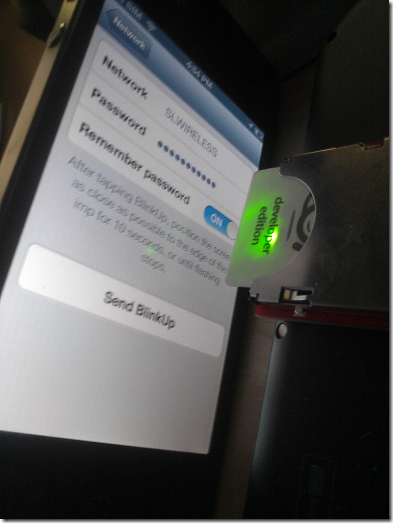
When you do this, you’ll see the screen flash black and white, white and black, really fast. Hmmm…reminds me of one of my favorite books Snow Crash.
After a little while, your IMP will also be green, just like mine.
Programming
So, next you’ll go to their web site with Chrome (another editorial note, they don’t support IE, but they say they are “working on it”, yyyyyeeeaaaahhh, I’m sure that’s towards the top of their priority list) and if you click on the “impees” you’ll see that your Imp has been registered.
My Imp

You can see this is the unique id for my IMP and MyFirstApp is the program that was downloaded to the little device. I have a feeling that Unique ID isn’t something I want to have published…hmmm…dunno?!?!
Code
So next, click on the Code tab, and click on "”+” to create and save a new program, I called mine “MyFirstApp”. The code should be similar to below:

//Windows 8 Test App.
server.show("Waiting for Windows 8");
class MsgInput extends InputPort
{
constructor(){
base.constructor();
}
function set(value){
server.show(value);
}
}
imp.configure("Windows 8 IMP Client", [MsgInput()], []);
//End of Code
This is a little Squirrel application. Basically it writes the message “Waiting for Windows 8” to the server and the IMP’s display (on the soon to be explained planner), then it creates a class that extends InputPort that overrides the set method. The set method get’s called from Windows 8 from a call over the internet (more on this very shortly). Then inside the set method it simply echo’s the value to the IMP’s display. Finally it just configures the IMP with a name, and specifies the MsgInput class as an input port for this program.
Planner
Now we need to “program” the IMP. Go to the “Planner” tab, find your IMP’s node and select the program you just created, in our case “MyFirstApp”.

That’s it, your IMP is ready to go!
Adding Input Port
Next we need to add a node to wait for a value coming from our Windows 8 app. To do this, select Add Http In.
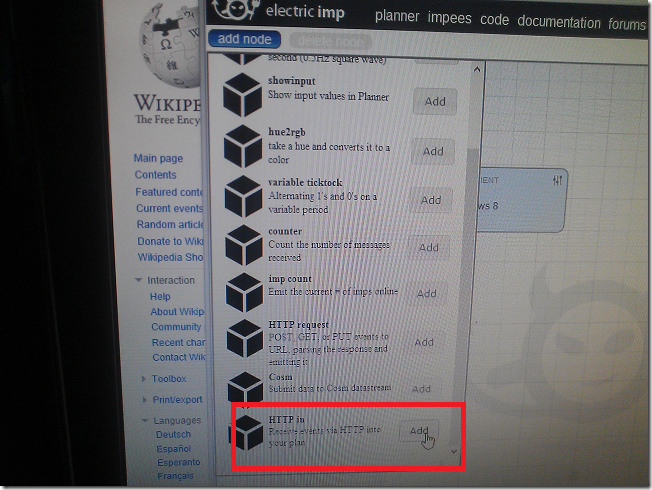
This will drop a new node on your planner, go ahead and click on the “+” to attach this HTTP In node to your IMP’s node.

So now you’ve visually connected the HTTP Input Port to the app running on our IMP. Remember, you have a subclass of InputPort that overrides the set method when the HTTP In node gets activated. Next we need to figure out what the HTTP IN node actually does, click on the little settings/slider in the upper right hand corner by HTTP IN and it will give you the URL for this input port.

So basically all we need to do is post a value to this HTTP end point and our IMP will pick it up.
Windows 8
Just create a simple Windows 8 Application and add a simple button as above (or some other way of triggering an event in the code behind).

Then in the code behind, add the following handler:
var clnt = new HttpClient();
var content = new StringContent("value=What+is+up+Imp");
content.Headers.ContentType = new System.Net.Http.Headers.MediaTypeHeaderValue("application/x-www-form-urlencoded");
clnt.PostAsync(“https://api.electricimp.com/v1/[YOURADDR]”, content);
Make sure you replace [YOURADDR] with the address from the External Service message from the planner.
Time to Test our Application
This should be what your Planner screen look like before the Input Port is invoked from Windows 8.

Time to run our highly sophisticated, and well designed app!

Press the Say Hello button and now your planner screen should look like:
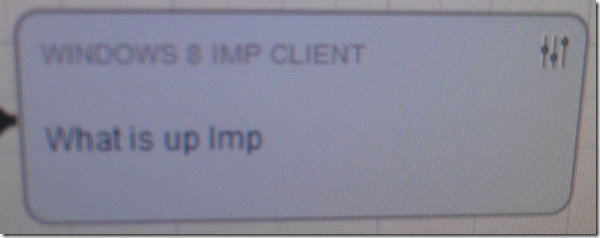
Which is the message we sent from our Windows 8 App.
var content = new StringContent("value=What+is+up+Imp");
I’m excited to find more time to play with this, it looks like it has some interesting potential, but getting started is really easy and it requires very little to no knowledge about Electronics.
-twb


