Showing posts with label XAML. Show all posts

Sunday, May 4, 2014

ListBox.ScrollIntoView Not Working

Fought with this one for about 2 hours…hope this post will help someone not waste their time.

Working in a Windows 8.1 store app, I had a command responses from my quad come to my machine over a USB port that I wanted to behave as a auto-scrolling console.

As lines of text came in, I put them in an ObservableCollection<String> that was associated with the ItemsSource on the ListBox.

Then had the code:

DeviceConsole.UpdateLayout();
DeviceConsole.ScrollIntoView(_receivedItems.Last());

Where _receivedItems was my ObservableCollection<String>.

This didn’t work, after much troubleshooting, I realized that the some of the command responses where duplicated.  For example, “OK” was returned when I told it to do something.  This appeared many times in the list, so when _receivedItems.Last() returned “OK”, and ScrollIntoView(item) was called with “OK”, it simply looked for a string match for “OK”, not the particular instance of the string that was the last item in the list, and it just picked the first instance in the list and didn’t scroll it into view.

FIX

Once I determined what was happening, the fix was obvious.  I simply created a class similar to:

public class CommandResponses
{
     public int Index {get; set;}
     public String Respone {get; set:}
}

And used an instance of this class in my observable collection ObservableCollection<String> used to populated the ListBox.  As soon as I did this, DeviceConsole.ScrollIntoView(_receivedItems.Last()); worked like a champ!

This was on a Windows 8.1 store app, but I suspect the same scenarios apply to ListBoxs on other platforms as well

-twb

Sunday, June 19, 2011

Windows Phone 7 – Quick Tip #28 – Expand ListView Items to Full Screen

Let’s say you are building a Windows Phone 7 app that displays items in a list.  Within this list you want to display something that is right justified with the border of the list.  If we used the following XAML:

image

We end up with:

image

Which really isn’t what we want, we want the “Click Me” button right justified.

If we replace the above XAML with the followings snippet:

image

and note the following changes to the XAML:

  1. We added a resource to the grid that will be displaying the list of items.  It contains a style for the ListBoxItem with the key ListItem.  This sets the HorizontalContentAlignment=”Stretch”.
  2. Next we applied that style to the ItemContainerStyle=”{Static Resource ListItem}” of the list view.
  3. Finally if you noticed in the first chunk of XAML, we use a StackPanel.  A StackPanel only is as wide as it’s content.  We change this to a Grid which will take up the full width of the parent..

Now when we run our application we see the following which is what we expect:

image-twb

Saturday, September 11, 2010

Windows Phone 7 Quick Tip #2 – Missing StringFormat Attribute

One of my favorite features introduced into Silverlight 4.0 was the ability to use StringFormat with the following syntax:

<TextBlock Text=”{Binding Cost, StringFormat=\{0:c\} }” />

This allows for a pretty much flawless implementation of data binding.

Here’s a not-so-simple, yet not-so-difficult work around.  The idea is to use value converters.

Step 1: Create a value converter as described in Tim Heuer’s post:

http://timheuer.com/blog/archive/2008/07/30/format-data-in-silverlight-databinding-valueconverter.aspx

Step 2: Rather than adding your value converter to the local user control where it’s used, add it to the App.xaml file resources, this allows for easy inclusion into anywhere within your application.  Make sure you add the namespace for the converter at the top of your app.  Then simply create a resource with a key that describes the converter.

image

Step 3: Use your value converter in the controls XAML:

<TextBlock Text=”{Binding Cost, Converter={Static Resource CurrencyConverer}” />

Obviously this isn’t as clean or as flexible as using StringFormat, however it’s not all that bad of a solution.

-twb

Saturday, September 4, 2010

Windows Phone 7 Quick Tip #1 – Use App.Resources for your Application Title

On most screens within your Windows Phone 7 application you might need to display your application name.  This might be in a simple page or one that contains a Pivot or Panorama.

Standard Page

image

Pivot Page

image

Panorama Page

image

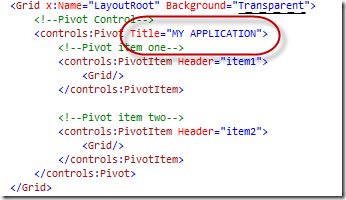
With the XAML that gets generated you can enter your application name for the respective page types as:

image

image 

image

Notice how the same text is entered for each title as a string literal?

A better solution is to use a string resource.  To create a string resource, add the following to your Application.Resources node within the App.xaml file.

image

Then everywhere you need to use your application name you can use the following syntax

image

-twb