As of yesterday 8/19/2014, you can take a standard Galileo and run Windows on it. This is a $50 piece of off the shelf hardware you can purchase off of Amazon and get started with the Internet of Your Things.
What you will need:
- Galileo – From Amazon for $50 as of the time of this writing, of course available with Prime
- USB Network Adapter – From Amazon $11
- 16GB Micro SD Card – From Amazon $11
You’ll also need something to write the files to your MicroSD card, you probably have something like this. Also the MicroSD card comes wiht a full size SD Card Adapter.
Most of the steps you need to get up and running can be found on the MS IoT update page.
Here are some things I ran into while setting up my environment.
Upgrading your Galileo to 1.02 Firmware
When you get your device, it will more likely be a 0.7X version to run with the new Windows Environment, you’ll need to upgraded it to 1.02
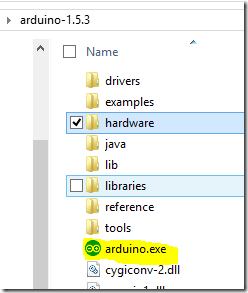
First off you’ll need to update your Galileo, you’ll need to install the Arduino 1.5.3 environment from the Intel site, so copy this to your hard drive, there isn’t an install, but you’ll just need to copy your files over to somewhere on your hard drive.
To update your Galileo you’ll need to apply power to it and plug the USB cable into the port labeled USB Client, this is the one next to the jack that looks like it’s for headphones (it’s not, but that’s a different story). Start Device Manager and keep it open. Then you need to wait, it could take 2-3 minutes, so be patient. Look for a device named similar to Gadget Serial V2.4, or an additional Serial Port, again, don’t get worried if this take a little while. If you have a new serial port, you are good-to-go. If you don’t then you’ll need to install the drivers for the new device. To install the drivers for your new device to let it work as a serial port. Right mouse click on that device, select Update Driver Software

Then navigate to the folder that is installed in and install the driver.

Once you do so, you should see a new port, it should be the one with Abstract Control Model:

Once you have that, then you can start the arduino IDE:
Make sure the port that is identified above is selected under Serial Port

Then click on Help ->Update Firmware, this takes 5 minutes. Make sure you Galileo is plugged in to the wall and you do not disturb the device while it’s updating or your could Brick your device.
Burning the SD Card
This is relatively straight forward, and you just need to let the process run on my machine it took about 1 hour to burn the file onto the SD Card
Getting your PC Ready
There is a really good guide here that gets you going, however you’ll need to install the standard Telnet client on your machine from Add/Remote Windows Components. Then you need to install the MSFT IoT SDK from here (for VS.NET 2013 Ultimate, for other editions please see the prior link).
Getting your Galileo Online
Great Step-by-Step instructions here.
Compiling Your Apps
Before you go off and create your next big thing with the Galileo it’s probably a good idea to make sure that you can compile a simple example. After you installed the SDK, you’ll see a new option with File->New->Project

Once you do that you’ll see a very simple program that will toggle one of the I/O pins and write something that will be sent to the Debug Output window.
An important note here – To Deploy applications from VS.NET to your Galileo you may need to Open Outgoing Port 4018 on your PC’s Firewall.
That’s it! Now you should be able to run the samples and build some awesome stuff!
-twb


