Showing posts with label hardware. Show all posts

Monday, September 1, 2014

Galileo NetworkSerial – Port 27015

Creating a network client on the Windows Version of Galileo is what I would call trivial!

There is however a catch, in the initial SDK that was released the only port you can use is hardcoded at 27015.  If you look towards the top of the GitHub file you’ll see the DEFAULT_PORT.  Maybe I missed it but I couldn’t see anywhere to override this.  Once you understand that, reading and writing from sockets is as simple as this:

image

Simply create this program, then on your PC open up telnet and connect to port 27015.

Hopefully in a future version of IoT you’ll be able to use different ports.

-twb

Tuesday, August 19, 2014

Running Windows on Galileo – Off The Shelf

As of yesterday 8/19/2014, you can take a standard Galileo and run Windows on it.  This is a $50 piece of off the shelf hardware you can purchase off of Amazon and get started with the Internet of Your Things.Intel GALILEO Single ATX DDR2 1066 Microcontroller Motherboard GALILEO1.Y

What you will need:

  1. Galileo – From Amazon for $50 as of the time of this writing, of course available with Prime
  2. USB Network Adapter – From Amazon $11
  3. 16GB Micro SD Card – From Amazon $11

You’ll also need something to write the files to your MicroSD card, you probably have something like this.  Also the MicroSD card comes wiht a full size SD Card Adapter.

Most of the steps you need to get up and running can be found on the MS IoT update page.

Here are some things I ran into while setting up my environment.

Upgrading your Galileo to 1.02 Firmware

When you get your device, it will more likely be a 0.7X version to run with the new Windows Environment, you’ll need to upgraded it to 1.02

First off you’ll need to update your Galileo, you’ll need to install the Arduino 1.5.3 environment from the Intel site, so copy this to your hard drive, there isn’t an install, but you’ll just need to copy your files over to somewhere on your hard drive.

To update your Galileo you’ll need to apply power to it and plug the USB cable into the port labeled USB Client, this is the one next to the jack that looks like it’s for headphones (it’s not, but that’s a different story).  Start Device Manager and keep it open.  Then you need to wait, it could take 2-3 minutes, so be patient.  Look for a device named similar to Gadget Serial V2.4, or an additional Serial Port, again, don’t get worried if this take a little while.  If you have a new serial port, you are good-to-go.  If you don’t then you’ll need to install the drivers for the new device.  To install the drivers for your new device to let it work as a serial port.  Right mouse click on that device, select Update Driver Software

image 

Then navigate to the folder that is installed in and install the driver.
image

Once you do so, you should see a new port, it should be the one with Abstract Control Model:
 image

Once you have that, then you can start the arduino IDE:
image

Make sure the port that is identified above is selected under Serial Port
image 

Then click on Help ->Update Firmware, this takes 5 minutes.  Make sure you Galileo is plugged in to the wall and you do not disturb the device while it’s updating or your could Brick your device.

Burning the SD Card

This is relatively straight forward, and you just need to let the process run on my machine it took about 1 hour to burn the file onto the SD Card

Getting your PC Ready

There is a really good guide here that gets you going, however you’ll need to install the standard Telnet client on your machine from Add/Remote Windows Components.  Then you need to install the MSFT IoT SDK from here (for VS.NET 2013 Ultimate, for other editions please see the prior link).

Getting your Galileo Online

Great Step-by-Step instructions here.

Compiling Your Apps

Before you go off and create your next big thing with the Galileo it’s probably a good idea to make sure that you can compile a simple example.  After you installed the SDK, you’ll see a new option with File->New->Project

image

Once you do that you’ll see a very simple program that will toggle one of the I/O pins and write something that will be sent to the Debug Output window.

An important note here – To Deploy applications from VS.NET to your Galileo you may need to Open Outgoing Port 4018 on your PC’s Firewall.

That’s it!  Now you should be able to run the samples and build some awesome stuff!

-twb

Friday, July 25, 2014

Tampa IoT Society – and the start of a new era

This morning before I started my client work, I took a few minutes to configure my highly customized Intel Galileo board and was able to successfully run Windows on a Very Small device.  I’ve order some really cool parts from SparkFun that I hope to integrate with the board over the weekend. 

MyGalileo

Also – today I am announcing that I am formally rebranding the Tampa .NET Microframeworks Group as the Tampa IoT Society. Our next meeting August 19st  will be dedicated to going through how to get started and what you can do.  I’ll also be sharing and discussing our vision of what we will be looking at for the next 12 months.

-twb

Friday, March 28, 2014

.NET Microframeworks Group and Windows Phone/Windows Store Apps

In our continuing serious on building an autonomous vehicle, in April we will let you robot start talking to the real world!

On April 15, I’ll be doing a session on demonstrating how to remotely control and talk to your robot from a Windows Phone and Windows Store application by adding a Bluetooth module to you robot.  And then setup some very basic protocols to control your robot with a Windows Phone and Windows 8 application. 

You'll be able to get the Bluetooth device from Amazon: 

http://www.amazon.com/Arduino-Wireless-Bluetooth-Transceiver-Module/dp/B0093XAV4U/ref=sr_1_1?ie=UTF8&qid=1395938505&sr=8-1&keywords=Bluetooth+module

To use this Bluetooth module, you'll need to configure it, to do so, you'll need some sort of USB to Serial Port Connector such as:

http://www.amazon.com/SunFounder-Arduino-Program-Download-Mega2560/dp/B00GD6GE6O/ref=sr_1_10?ie=UTF8&qid=1395938602&sr=8-10&keywords=USB+232

You can sign up at:

http://www.meetup.com/Tampa-Bay-NET-Microframeworks-Developer-Group/events/173765942/

-twb

Sunday, March 9, 2014

A “Bug” in my Software

As a beer drinker, I’ve discovered Home Brewing over the past couple of years.  As a hardware hacker I needed to combine my love for beer with my love for hardware. 

After finding out how much of PITA it is to bottle my home brew, being the lazy I’ve gotten into Kegging and have this awesome kegerator. 

image


As an hardware/software engineer I couldn’t resist the urge to create little board to control the temperature of my kegerator.

image

In case anyone cares about the board…the two blue terminals on the left take in 120VAC on one set.  The other set provides switched 120VAC to control the compressor and thus the temperature on the kegerator.  The white component directly to the right of the terminals is a 120VAC to 9V converter, the black box on top of it is a relay and the smarts on this board is an Electric Imp on the top right.  The little gold terminals at the bottom are where a thermostat is connected as well as a serial output for a display.  Contact me if anyone wants the eagle files, it’s actually pretty easy to assemble.

This board has a 4x20 LCD character display on it as shown in the picture below (inside a 3D printed case).  As you can see the display looks terrible, a considerable number of rows are no longer lighting.

image


Upon closer examination, there is a “Bug” that somehow got into side the display and looks like it screwed it up :) poor guy…

image 

-twb

Saturday, October 6, 2012

Talking to an Electric IMP with Windows 8

Ok – your first question is “What the hell is an Electric IMP?”  My lazy answer is - check out their web site for the best answer: http://electricimp.com.  

But in a nut shell, it’s a small little electronics module with the primary focus of connecting to the internet and controlling hardware.  This hardware can be something as simple as a relay to control a light or as complicated as a sensor that uses I2C, SPI or serial communications (UART).  You have six I/O lines that can be configured for your needs, so you aren’t going to control a small factory with only one of these, but configure a 100 or so of these and it might get interesting.  At this point, this “tech” is in a very early stage, the concept is very cool, but I don’t think I’d propose doing anything commercial or for a client, well at least just yet.

So let’s start where it all begins, here is my little Electric IMP that I purchased from Spark Fun. 
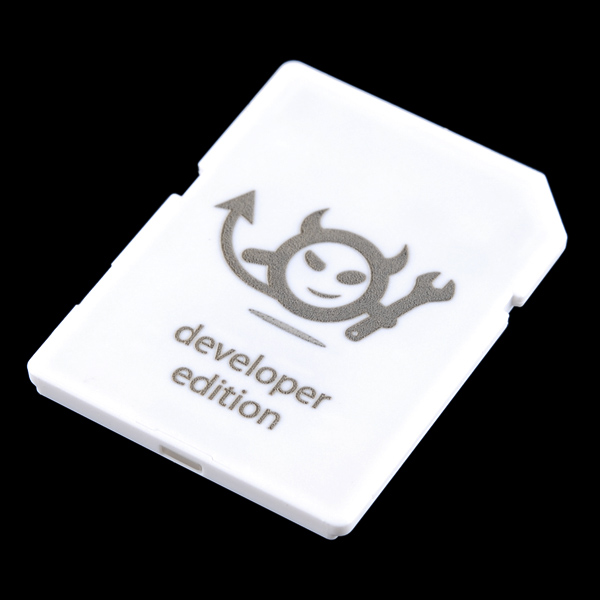
And here it is in it’s home in an SD socket that’s part of the Breakout Board for the IMP.  A couple of things to note on this.  First, this is not just socket for an SD card it has a specific pin out for the IMP.  I’m really not sure why the IMP is in this form factor, probably just to have a nice little carrying case.  Second, although it connected with a USB cable this is only there to provide power.  The data lines are not used.  Third, those little white headers did not come with the break out board, I soldered these on there.  It really is a very basic soldering activity, so don’t let that scare you.  To use the power from USB, simply place a jumper on, or just hardware the two pins as shown on the board below.

image

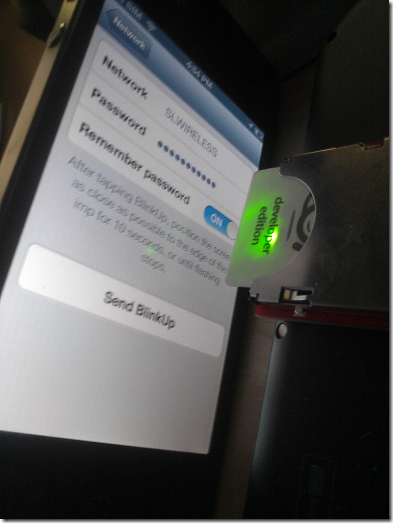
In my picture above, you can see the green glow of some internal LED’s.  This is because I’ve already registered my IMP with Electric IMP’s server.  Everything you do with this IMP goes through their server.  Ok, you are probably now thinking what I was/still am thinking….”hmmm…actually I don’t know what to think about that…and…I’m still at the jury is still out point on this having long term legs…but it is sooooo cool, I’m going to give it the benefit of the doubt”.

Ok back to the content, my IMP is green, if you plug a new one in, yours won’t be.  To get your IMP green, and thus have it registered so you can use it with the Electric IMP server, you need to signup for an account at http://electricimp.com, download an iPhone or Android (what no Windows Phone?!??) app.  Then, do something that I think is very cool, turn the lights down in your room, no seriously do this it works better in a darker room, run the app, follow the instructions and hold the screen of your non-Windows Phone device, next to the front edge of your IMP as pictured below and press the “Send BlinkUp” button on your “other type of phone”.
image

When you do this, you’ll see the screen flash black and white, white and black, really fast.  Hmmm…reminds me of one of my favorite books Snow Crash.

After a little while, your IMP will also be green, just like mine.

Programming

So, next you’ll go to their web site with Chrome (another editorial note, they don’t support IE, but they say they are “working on it”, yyyyyeeeaaaahhh, I’m sure that’s towards the top of their priority list) and if you click on the “impees” you’ll see that your Imp has been registered.

My Imp

image

You can see this is the unique id for my IMP and MyFirstApp is the program that was downloaded to the little device.  I have a feeling that Unique ID isn’t something I want to have published…hmmm…dunno?!?!

Code

So next, click on the Code tab, and click on "”+” to create and save a new program, I called mine “MyFirstApp”.  The code should be similar to below:

image

//Windows 8 Test App.

server.show("Waiting for Windows 8");

class MsgInput extends InputPort
{
    constructor(){
        base.constructor();
    }

    function set(value){
        server.show(value);   
    }
}

imp.configure("Windows 8 IMP Client", [MsgInput()], []);

//End of Code

This is a little Squirrel application.  Basically it writes the message “Waiting for Windows 8” to the server and the IMP’s display (on the soon to be explained planner), then it creates a class that extends InputPort that overrides the set method.  The set method get’s called from Windows 8 from a call over the internet (more on this very shortly).  Then inside the set method it simply echo’s the value to the IMP’s display.  Finally it just configures the IMP with a name, and specifies the MsgInput class as an input port for this program.

Planner

Now we need to “program” the IMP.  Go to the “Planner” tab, find your IMP’s node and select the program you just created, in our case “MyFirstApp”.

image

That’s it, your IMP is ready to go!

Adding Input Port

Next we need to add a node to wait for a value coming from our Windows 8 app.  To do this, select Add Http In.
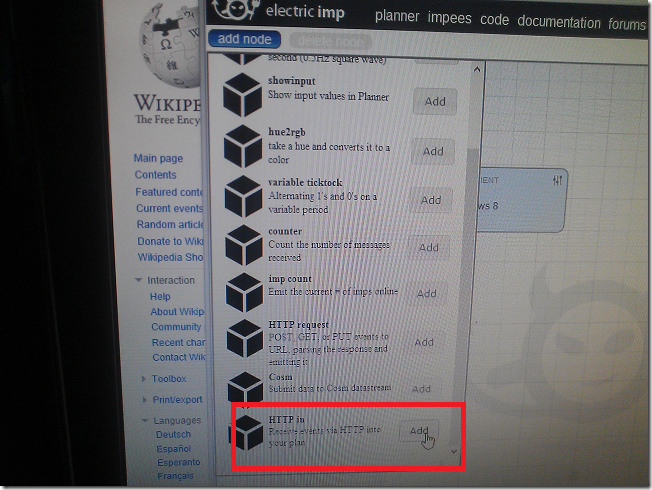
image

This will drop a new node on your planner, go ahead and click on the “+” to attach this HTTP In node to your IMP’s node.

image

So now you’ve visually connected the HTTP Input Port to the app running on our IMP.  Remember, you have a subclass of InputPort that overrides the set method when the HTTP In node gets activated.  Next we need to figure out what the HTTP IN node actually does, click on the little settings/slider in the upper right hand corner by HTTP IN and it will give you the URL for this input port.

image

So basically all we need to do is post a value to this HTTP end point and our IMP will pick it up.

Windows 8

Just create a simple Windows 8 Application and add a simple button as above (or some other way of triggering an event in the code behind).

image

Then in the code behind, add the following handler:image


var clnt = new HttpClient();
var content = new StringContent("value=What+is+up+Imp");
content.Headers.ContentType = new System.Net.Http.Headers.MediaTypeHeaderValue("application/x-www-form-urlencoded");

clnt.PostAsync(“https://api.electricimp.com/v1/[YOURADDR]”, content);

Make sure you replace [YOURADDR] with the address from the External Service message from the planner.

Time to Test our Application

This should be what your Planner screen look like before the Input Port is invoked from Windows 8.

image

Time to run our highly sophisticated, and well designed app!

image

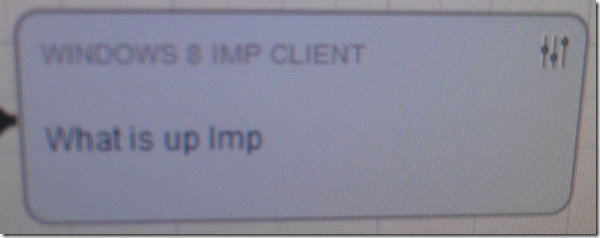
Press the Say Hello button and now your planner screen should look like:
image

Which is the message we sent from our Windows 8 App.

var content = new StringContent("value=What+is+up+Imp");

I’m excited to find more time to play with this, it looks like it has some interesting potential, but getting started is really easy and it requires very little to no knowledge about Electronics. 

-twb

Tuesday, September 15, 2009

Enabling “Pen and Touch” features on your Samsung NP-Q1 UMPC

A couple/few years ago, I purchased a Samsung Q1 UMPC.  It came with Windows XP and performance was adequate, however I configured it for dual boot and install Vista on a second partition.  Performance with Vista was, well, ah, let’s just say the device hasn’t been used all that much recently.

I’ve heard good things about running Windows 7 on older machines so I went through the upgrade process on my Q1.  Windows 7 brought this device back to life (the drivers are easily spotted with a little bit of searching).  The only problem I had was that the touch screen acted like a mouse. That is to say it didn’t have any of the nice features that Windows 7 implemented for “Pen and Touch” or any advanced tablet features.  After doing a bit of research I was finally able to get my device acting as a “Pen and Touch” enabled computer.  It should be noted this isn’t a Multi-Touch device, just a single touch point.

Before you get started, I found it was easiest to just get an external mouse to configure the Q1. 

  1. Download and install the eGalaxTouch for Windows 7
  2. Copy and extract this driver to your Q1
  3. If you have a fresh install you should see something like HID Touch Driver (Universal) under “Mice and other pointing devices” in your Device Manager Note: It will be very close to that, I’ve already upgraded my driver and can’t remember the exact name.
  4. We can’t upgrade the default Touch Driver to our new one directly so will need to upgrade to one listed in the devices.
    1. Click on “Update the Device Driver”
    2. Select “Browse My Computer”,
    3. “Let me pick…”
    4. Un-check “Show compatible hardware” and look for “ELO TouchSystems” and install that.  The idea here is that we just need something we can upgrade so if you can’t find and that specific one, find one you can install.
  5. Reboot your computer
  6. Now when you open your Device Manager you should see the temporary driver you installed.  This will probably be under “Human Interface Devices”.  Your touch screen may or may not work at this point.
  7. Go through the same process to upgrade your temporary driver, but this time find the folder where you extracted the drivers from the second step above.
  8. Reboot again.
  9. If all went well, when you select the user you want to login with and see the password box, you will see an on screen keyboard.
  10. Once you login, be sure to open Hardware and Sound under control panel.  This is where you can calibrate your device and configure the rest of the Pen and Touch options.

image

You can also verify that your system is setup properly by clicking on “Computer” and “System Properties”.  You will see Single Touch Input Available.

By the way, don’t let the 1.0 WEI fool you that is just because I can’t run Aero on the device.  For what I’ll use it for, performance is better than Windows XP and much better than Vista.

-ec

Saturday, June 13, 2009

Upgrading the Solid State Disk (SSD) in my HP Mini

I’m always searching for the perfect mobile computing platform/configuration.  The day the first Tablet PC came out running Windows XP Tablet Edition I picked up a Toshiba before they even put out the display model.  Also after attending an Mobile Embedded Toshiba Portege 3505 - PIII-M 1.33 GHz - 12.1Developers Conference (MEDC) session I had Samsung Q1 Tablet PCthought Ultra Mobile PCS (UMPC’s) was the way to go so I picked up a Samsung Q1 as soon as I could find one.  Last December when I was up in Minneapolis I picked up one of the latest contenders, a HP Mini Netbook.  I really like the form factor and the styling even more than my Macbook, but the performance was just not acceptable.  It came with Windows XP and I immediately updated it to Windows 7.  Performance on the first beta of Windows 7 was better than Windows XP, but it still was slow.  Taking 7-10 seconds to launch a HP Mini 1035nr - Atom N270 1.6 GHz - 10.2browser is just plain painful.  I even popped in a little SD card and enabled ready boost, I could tell a different but it wasn’t fast enough to make the device usable.  The problem was the junky SanDisk SSD that came with the computer, I’m very surprised that HP even went to market with the device.


I did some research and it looked like the best way to go was a Runcore SSD but the availability wasn’t that great.  Last week I finally received this Runcore 32GB that had been backordered for months. Installing it only took me about 10 minutes with these instructions.


I just can’t say enough about how much the new SSD transformed my little HP Mini from a paper weight into something that is actually a very usable device.  I probably won’t be doing any development, but for taking notes, surfing the web, email and word processing, which are the things I purchased it for, it runs plenty fast.  As you can see my Primary hard disk WEI transfer rate is 5.9.  I probably should have looked before, but the number 1.7 sounds familiar.

image

Bottom line is if you own an HP Mini, run don’t walk to your computer (well I guess if you are reading this chances are you are probably already there)  My Digital Discount and order a SSD, you won’t be sorry, trust me, really I mean it.

-ec

Friday, June 5, 2009

I’ve got an Awesome Battery

I wish I could find more like this

-ec